
SKUs, lots and lot allocation
Updated October 28, 2026
On this page (4)
A material can have SKUs and lots. A SKU is a way to buy it: from a supplier, in a purchase unit, at a price. A lot is stock you have: one delivery with its own number, cost, expiry and location. Lot allocation decides which lot production uses first.
Add a SKU
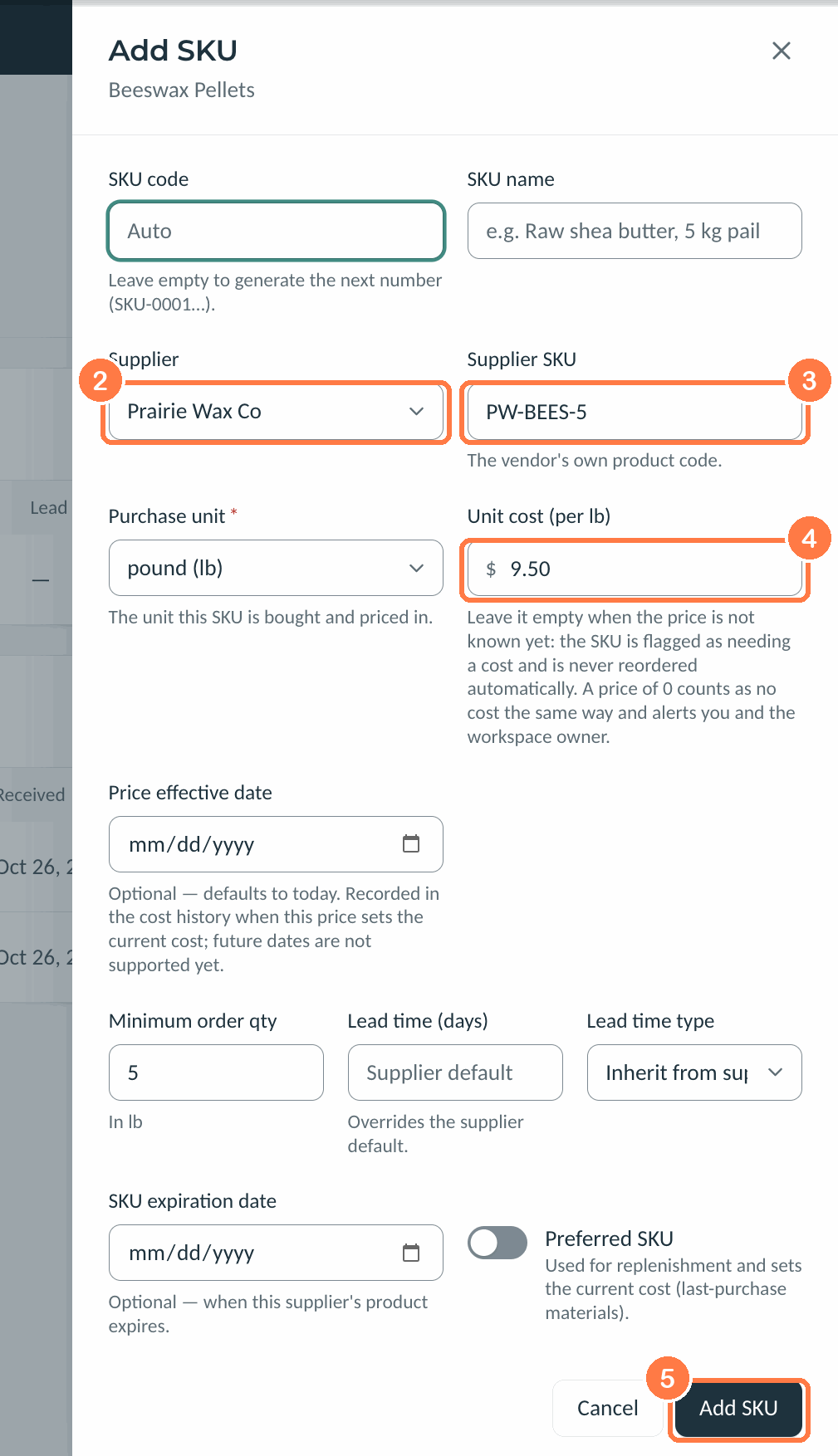
- Open the material and click the SKUs & Lots tab, then Add SKU.
- Choose the Supplier.
- Type the Supplier SKU, the supplier's own product code.
- Enter the Unit cost in the Purchase unit, the unit you buy it in.
- Click Add SKU.
 (opens the full-size image in a new tab)
Leave SKU code empty and Kerno numbers it (SKU-0001 and on). You can also set a Minimum order qty and a Lead time that overrides the supplier's. The Preferred SKU sets the material's current cost and is the one used for automatic reordering.
Add a lot
- On the material's page, click Add inventory.
- Enter the Quantity, its Unit cost, and the Lot number, Expiration date, Storage location and Supplier if you have them.
- Click Add inventory.
A lot number can be used only once for each material. Kerno refuses one that's already taken.
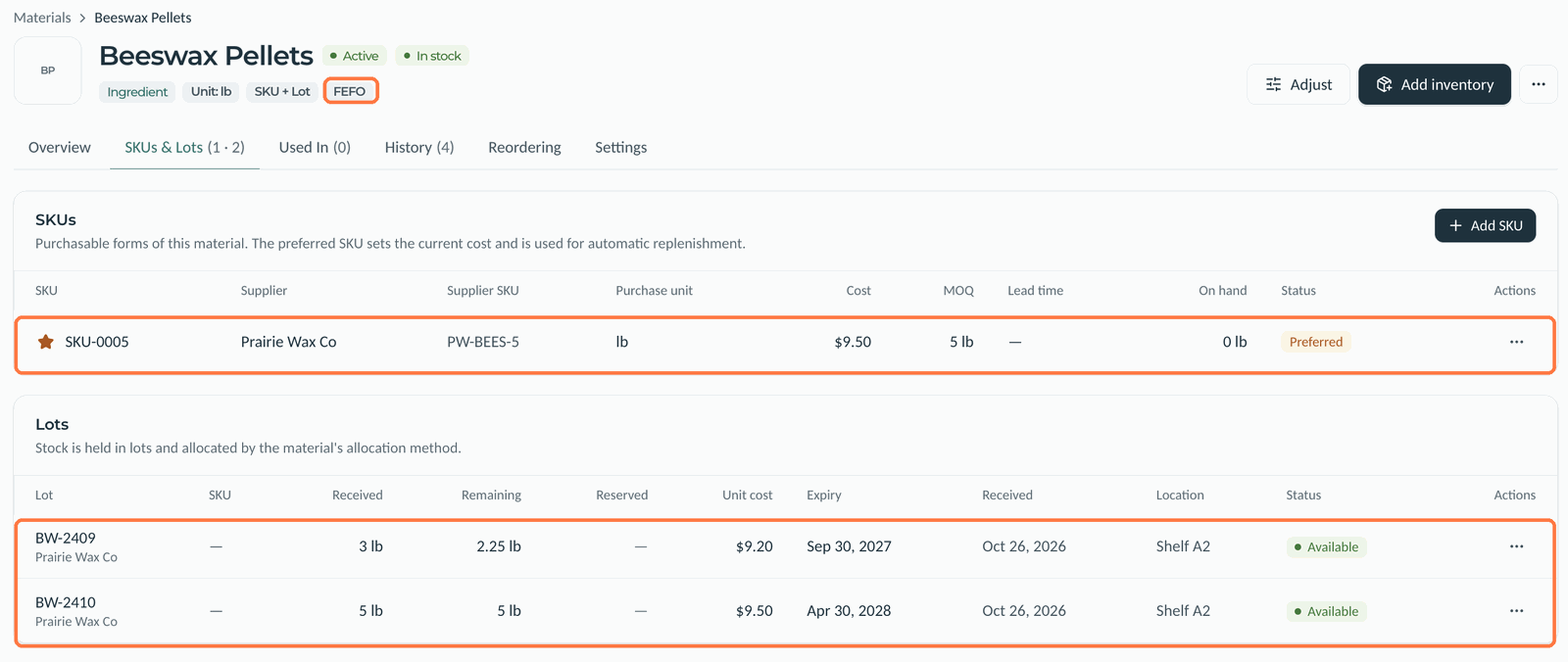
This records stock you received without a purchase order. For stock you ordered, receive it from Purchases instead. Each lot appears in the Lots table with what was received, what remains, its cost, expiry and location.
 (opens the full-size image in a new tab)
Choose which lot is used first
Each material has a Lot allocation, shown as a badge at the top of its page:
- FIFO: first in, first out. The oldest receipts are used first.
- FEFO: first expired, first out. The lots that expire soonest are used first.
- LIFO: last in, first out. The newest receipts are used first.
Production reserves and uses lots in this order, and so do adjustments and waste when you don't pick a lot. For example, with FEFO, a 0.5 lb decrease came out of the lot expiring in September 2027, not the one expiring in April 2028.
To set it, open the material's Settings tab, or choose it under Allocation & stock rules when you add a material. A material left on Use workspace default follows Default lot allocation in Settings, then Workspace.
Related articles
Still need help?
Can't find what you're looking for? Our support team will help.